Appearance
Call Flows
WebWorkstationUse Admin > ZynoTalk > Call Flows to build how inbound calls move through menus, ring groups, voicemail, recordings, time conditions, and other ZynoTalk destinations.
Admin Access Required
Only ZynoTalk administrators should create or edit call flows.
Current ZynoTalk Platform
This screen appears only for organizations using the current ZynoTalk calling platform. If you do not see it, your organization may be on a legacy voice setup or the feature may not be enabled.
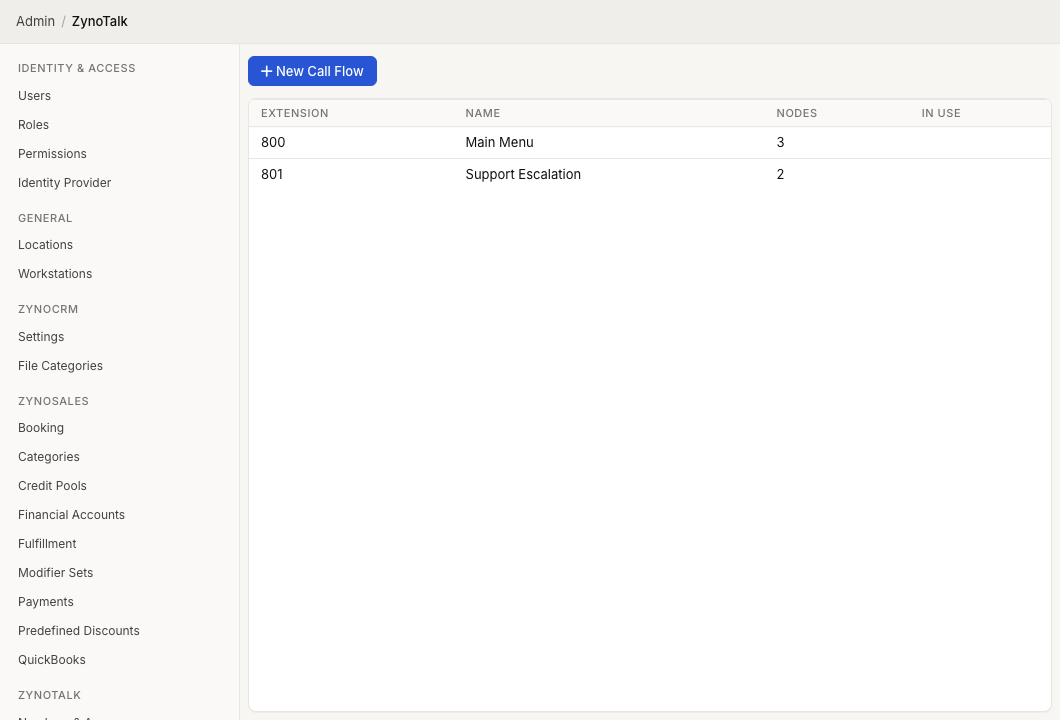
Page Layout
The Call Flows table shows:
- Extension
- Name
- Nodes
- In Use
Select a call flow to open the builder. Open the row context menu to edit or delete a flow.
The toolbar can also show Continue Editing when an unsaved draft exists.
Create A Call Flow
- Open Admin > ZynoTalk > Call Flows.
- Select New Call Flow.
- Enter a Name.
- Enter an optional Extension if the flow should be reachable internally.
- Select Create.
- Use the builder to add and connect nodes.
- Select Validate to check the flow.
- Select Save.
The extension is checked before the builder opens. If the extension is already used by an extension, ring group, or another call flow, choose a different extension.
Builder Controls
The builder has three working areas:
| Area | Purpose |
|---|---|
| Node palette | Add steps to the flow. |
| Canvas | Arrange and connect steps. |
| Properties panel | Edit the selected step. |
The footer includes History, Undo, Clean Up, Validate, Cancel, and Save when those actions apply.
Available Node Types
| Category | Nodes |
|---|---|
| Terminal | Answer, Reject, Hangup |
| Actions | AI Agent, Collect Digits, Extension, IVR Menu, Park, Play Audio, Ring Group, Voicemail |
| Call Controls | Set Variable, Start Recording, Stop Recording |
| Flow Control | Forward, Go To, Sub-Flow, Time Condition |
Route A Number To A Call Flow
- Open Admin > ZynoTalk > Numbers & Access.
- Select the telephone number.
- On Overview, set Routed To to Call Flow.
- Choose the call flow.
- Save.
The Call Flows table marks a flow as In Use when at least one telephone number routes to it.
Media In Call Flows
Call flow audio can use uploaded files, audio URLs, greetings, text-to-speech, and stored audio when available. Create reusable greetings on Admin > ZynoTalk > Greetings before adding them to a flow.
Common Issues
| Problem | What To Check |
|---|---|
| The flow cannot be saved | Select Validate and fix every error shown in the builder. |
| A number does not use the flow | Confirm the number's Routed To destination points to the saved call flow. |
| A destination is missing | Create the ring group, parking lot, AI agent, greeting, or extension first. |
| A draft keeps appearing | Open Continue Editing and either save or cancel the draft. |