Appearance
Greetings
WebWorkstationUse Admin > ZynoTalk > Greetings to upload or generate reusable audio greetings for call flows and other routing media.
Admin Access Required
Only ZynoTalk administrators should manage shared greetings.
Current ZynoTalk Platform
This screen appears only for organizations using the current ZynoTalk calling platform. If you do not see it, your organization may be on a legacy voice setup or the feature may not be enabled.
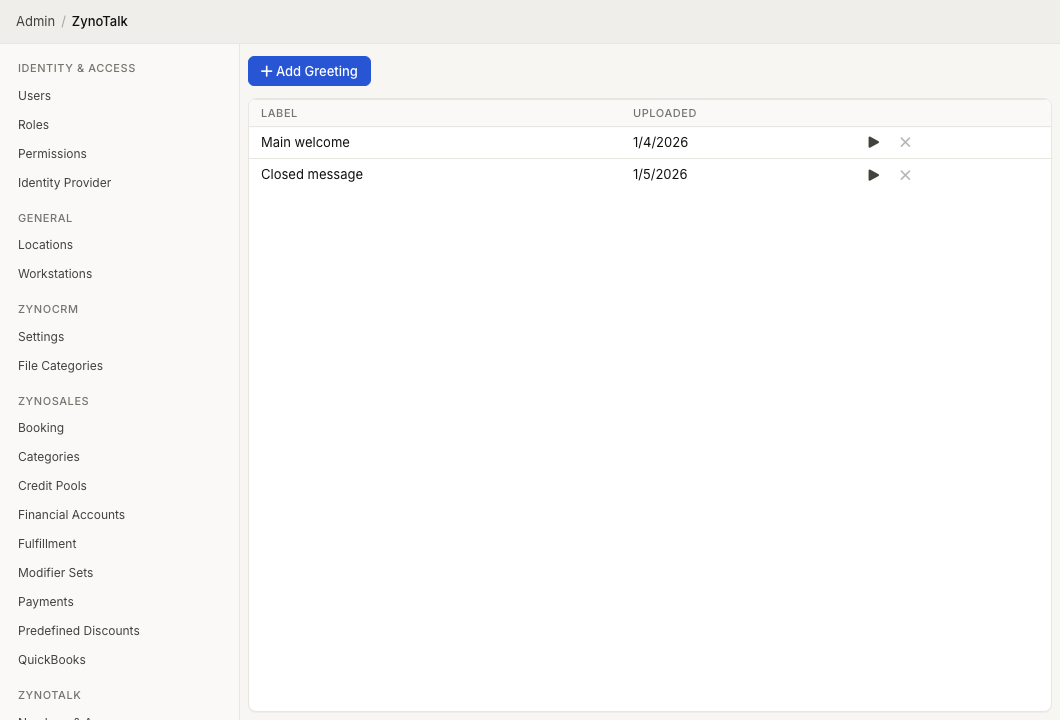
Page Layout
The Greetings table shows:
- Label
- Uploaded
- Playback controls
You can play, rename, or delete each greeting.
This screen manages shared greetings. Extension-specific voicemail greetings are managed from an extension's Voicemail tab on Admin > ZynoTalk > Numbers & Access.
Add An Uploaded Greeting
- Open Admin > ZynoTalk > Greetings.
- Select Add Greeting.
- Keep Upload selected.
- Select Choose File.
- Pick an audio file.
- Preview the processed audio if needed.
- Enter a Label.
- Select Add.
Add A Text-To-Speech Greeting
- Open Admin > ZynoTalk > Greetings.
- Select Add Greeting.
- Select Text-to-Speech.
- Choose the Provider and Voice shown in the editor.
- Enter the Text to speak.
- Select Generate.
- Preview the generated audio if needed.
- Enter a Label.
- Select Add.
Use A Greeting
Greetings can be selected as media in call flow nodes and other media editors. Create the greeting first, then open the call flow or routing object that should use it.
Common Issues
| Problem | What To Check |
|---|---|
| The greeting cannot be added | Confirm a file or generated text-to-speech audio is ready and the label is filled in. |
| The wrong audio plays | Preview the greeting, rename it clearly, and update the call flow node that uses it. |
| A voicemail greeting is missing | Open the extension's Voicemail tab instead of the shared Greetings screen. |
| Delete is risky | Check any call flows that may still reference the greeting before deleting it. |