Appearance
Hold Music
WebWorkstationUse Admin > ZynoTalk > Hold Music to upload hold music tracks and choose which tracks callers hear.
Admin Access Required
Only ZynoTalk administrators should manage hold music.
Current ZynoTalk Platform
This screen appears only for organizations using the current ZynoTalk calling platform. If you do not see it, your organization may be on a legacy voice setup or the feature may not be enabled.
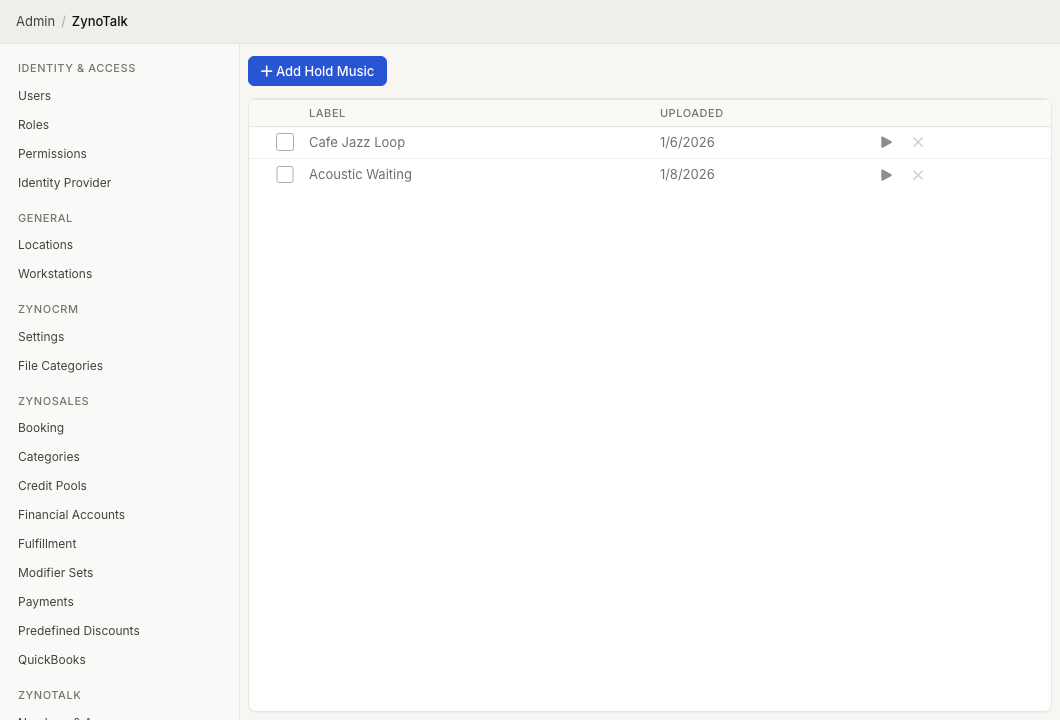
Page Layout
The Hold Music table shows:
- Whether each track is active.
- Track order for active tracks.
- Label
- Uploaded
- Playback and delete controls.
If no custom hold music is configured, ZynoTalk uses the default hold music.
Add Hold Music
- Open Admin > ZynoTalk > Hold Music.
- Select Add Hold Music.
- Select Choose File.
- Pick an audio file.
- Preview the processed audio if needed.
- Enter a Label.
- Select Add.
Choose Active Tracks
- Check each track that should be active.
- Drag active tracks into the order callers should hear them.
- Select Save Changes.
If you uncheck every track and save, ZynoTalk falls back to the default hold music.
Edit Or Remove Tracks
- Use the pencil next to a label to rename a track.
- Use the playback button to preview a track.
- Use the delete control to remove a track.
Common Issues
| Problem | What To Check |
|---|---|
| Changes are not live | Select Save Changes after activating or reordering tracks. |
| A track is listed but not used | Confirm its checkbox is selected. |
| The default music plays | No active custom track is saved. |
| A file fails to process | Try a different audio file or ask support to review the file format. |